Before you begin
An existing account and access to the correct organization. Follow any verification or onboarding prompts before opening the workspace.
Steps
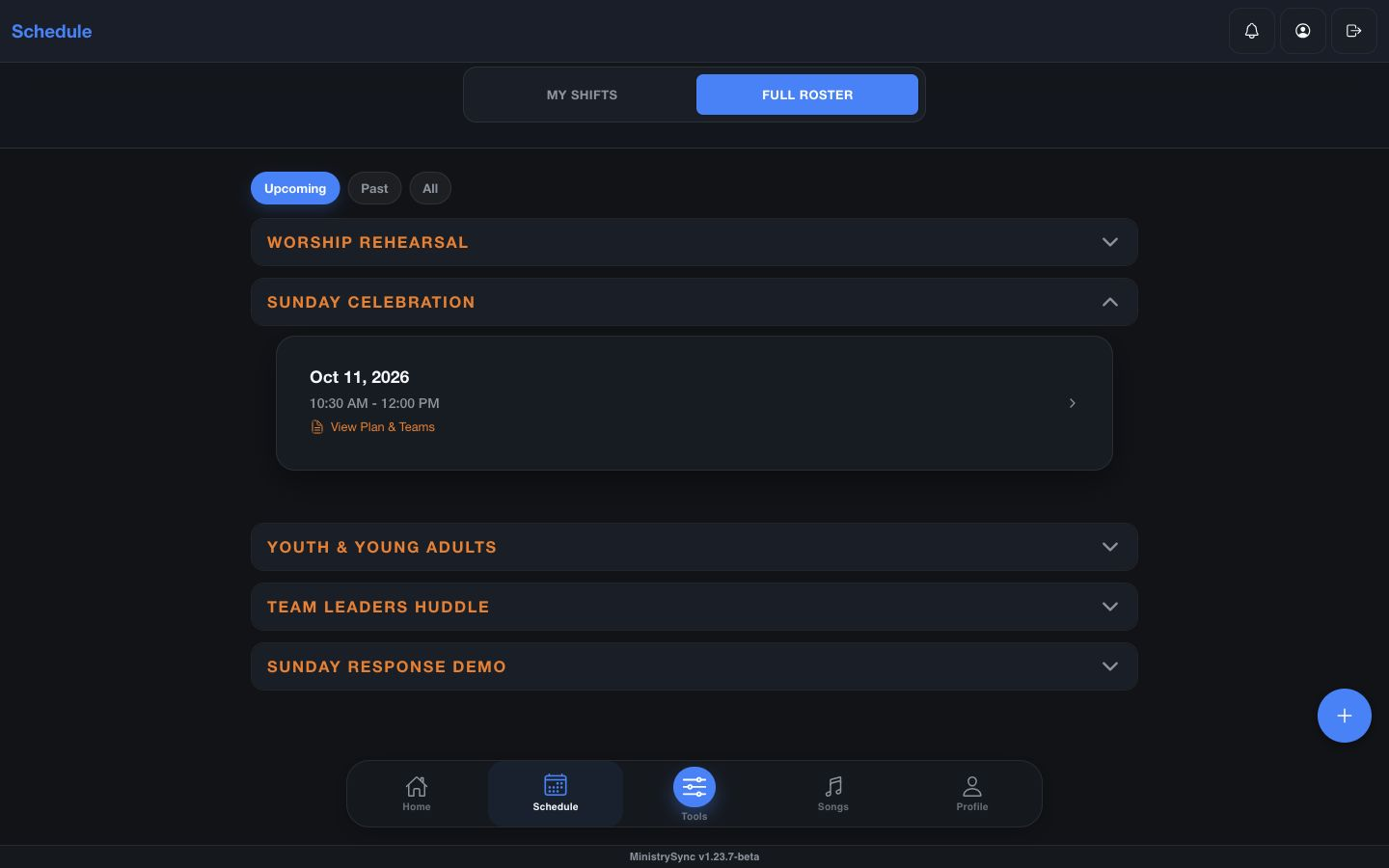
- Use Schedule to review the dated services in your organization. The demo groups upcoming events into a clear weekly view.
- Review the relevant service details and the order of service. Keep song names and keys in that service context.
- Confirm assignments and editing permissions with your organization owner. This guide covers the shown planning views, not an unverified invitation or scheduling procedure.
Keep in mind
Steps were checked against the source version listed above. Your installed version and permissions may change which controls appear. Ask your organization owner if access is missing.
The screenshots show approved demo views. Check readability on your device; they do not prove shared synchronization or feature parity.